Looking Inside .git - How Git Internally Works
.git Directory, Demystified
My articles on various topics from "Computer Science Basics" to "Software Engineering", "System Design" in beginner-friendly way.
Written with the focus to help my readers to build mental models, real-world analogies, and simple explanations for complex problems.
Introduction
Git works flawlessly—until it doesn’t. Merge conflicts, detached HEADs, corrupted repos—these problems become trivial once you understand how Git works internally. Many developers use Git every day, but treat it like a black box
Hi! My name is Abhirup Roy, I build softwares and write about them. Today I am writing a concept-first article designed to help you understand Git internally, not just use it. The goal is to help you build a mental model of Git—how it thinks, stores, and protects your code - so Git commands feel logical instead of magical.
The .git folder serves as Git's database, storing all repository metadata, history, and objects to track your project's evolution without relying on external servers. Understanding its structure and contents reveals how Git maintains snapshots of your work efficiently. This mental model shifts focus from commands to Git's content-addressable file system.
This article explains:
What the
.gitfolder really isHow Git objects (blob, tree, commit) work together
What actually happens during
git addandgit commitHow hashes guarantee integrity
Why Git tracks content, not files
No memorization. Only mental models.
Main Premise: A Content-Addressable File system
Before diving into the folders, we must understand the fundamental paradigm of Git.
Git is fundamentally a content-addressable file system layered with a directory tree structure.
What does that mean? Most systems store data based on where it is (e.g., C:/Documents/report.txt). Git stores data based on what it is.
Git takes a piece of data (like the contents of a file), runs it through a hashing algorithm (SHA-1), and generates a unique 40-character string (the hash). Looks like: 6f5d4e3....
Why is this crucial?
The hash is the identity: Git doesn't care that your file is named
index.html. It only cares about the hash of its contents.Integrity is guaranteed: If you change a single character in a file, the resulting hash changes completely. It is impossible to corrupt file contents or alter history without Git knowing about it, because the hashes wouldn't match anymore.
Deduplication: If you have two files with identical contents in different folders, Git only stores the content once, because they share the same hash.
The Engine Room: The .git Folder

Git is a database of snapshots, not diffs
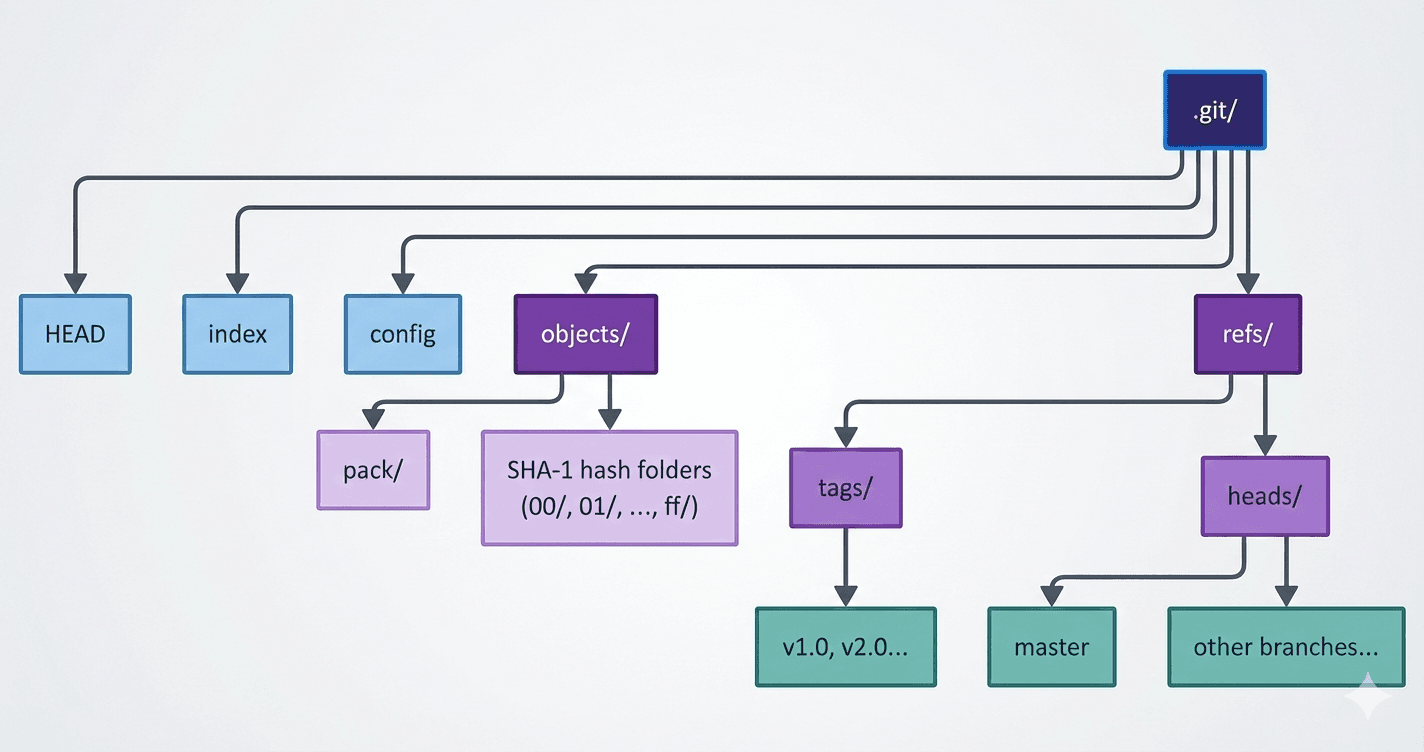
What is the .git Folder? The .git folder is the Git repository itself. Everything Git knows - history, branches, commits, staging, tags—is stored inside .git.
If you delete the
.gitfolder, your project becomes a normal folder again.
Why Does the .git Folder Exist? Git in over-simplified term, is a content-addressed database plus a versioned file system.
Your working directory → files you edit
.gitdirectory → Git’s internal database
Git never relies on filenames or timestamps. It relies on content hashes.
When you run git init in a directory, Git creates a hidden folder named .git. This folder is your repository. Your working directory (where you edit files) is just a temporary checkout of data managed inside the .git folder.
While it contains many configurations, these are the critical components for understanding internals:
objects/: This is the heart of Git. This is the database where all your files, commits, and trees are stored, referenced by their hashes.refs/: This is where Git stores bookmarks to specific commit hashes. Branches (likemainordevelop) and Tags are just files in here containing a single hash.index: (Also called the "Staging Area"). This is a binary file that acts as the crucial middleman between your working directory and the repository. It builds the next commit.HEAD: A pointer indicating "where you are right now." It usually points to a branch name insiderefs/.
Git Objects: The Atoms of History
Git stores everything as immutable objects, each identified by a unique SHA-1 hash (40-character hex from content), ensuring integrity—if content changes, the hash changes. Inside the .git/objects directory, Git stores everything using three main types of objects. Don't think of changes as "diffs"; think of them as snapshots built from these three blocks. Three core types form a hierarchy: blobs (file contents), trees (directory snapshots), and commits (named snapshots with metadata).
Blob: The simplest object. A blob contains just the contents of a file. It does not know the file's name, its permissions, or when it was created. It is just raw data compressed and hashed. Raw file content, no filename or history stored—just bytes with a hash like da39a3ee5e6b4b0d3255bfef95601890afd80709.
- Analogy: A Polaroid photograph. It shows an image, but nothing is written on the white border.
Tree: Blobs aren't enough. We need filenames and directory structures. A Tree object solves this. A Tree is essentially a list of directory contents. Each line in a Tree object maps a filename to the hash of a Blob (for files) or another Tree hash (for sub directories). Directory listing with name, mode, and hash references to blobs or sub-trees, e.g., representing "file.txt" pointing to its blob hash.
- Analogy: A folder on your computer desktop that contains photos (blobs) and other sub-folders (other trees).
Commit: Snapshot via tree hash, plus metadata (author, date, message, parent commits), forming history chains.
| Object Type | Purpose |
| Blob | Stores file content |
| Tree | Stores directory structure |
| Commit | Stores snapshot + metadata |
This design enables deduplication—identical file content reuses the same blob hash across the repository.